Controlling costs is just as important as performance and availability. Cloud costs can silently grow when no one is watching. If you’re strict about spending, AWS Budget alerts can definitely help.
However, alerts alone aren’t enough, it only tells you that your defined budget threshold has been reached.
In this article, i’ll show you step-by-step how to automate EC2 shutdown with AWS Budget alerts and AWS Lambda.
This setup is designed for development or proof-of-concept environments. I would not recommend this setup for production environments
The goal is very simple: Whenever the budget threshold is reached, the EC2 instances should stop automatically. No drama.
Diagram
We will be using several services to make the goal reached. The high-level architecture is below:
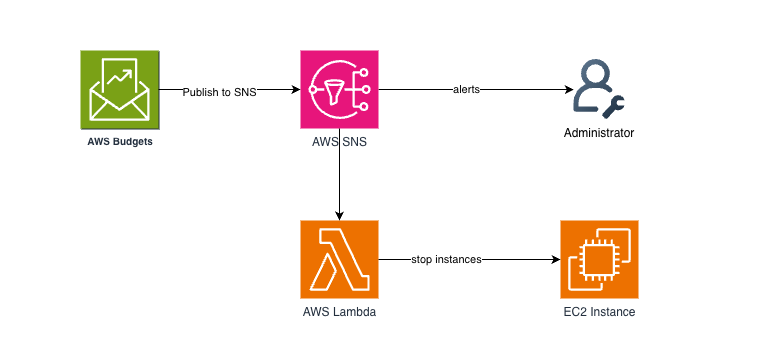
AWS Budget publishes an event to Amazon SNS when the threshold is reached. There are two subscribers to SNS topic in this scenario:
- Subscriber for alerts, SNS will publish /notify the administrator
- Subscriber for lambda, SNS will invokes a lambda function
When Amazon SNS invokes a Lambda function, it will executes the EC2 StopInstances API call to shutdown the instance target
One thing to remember, AWS Budgets are not real-time. Notifications maybe delayed up to 24 hours because they rely on daily billing data refreshes
What You’ll Need
- An AWS account with billing access enabled
- Permissions to access Amazon SNS, AWS Lambda and to create IAM roles & policies
- EC2 instances already running
Let’s get started!
Section 1: Create Amazon SNS Topic and configure publisher/subscriber
First, we need to set up an Amazon Simple Notification Service (SNS) topic along with its subscribers.
SNS topic basically works as a messaging channel that sends notifications to all subscribers we’ve defined in subscriptions. In this setup, we’ll have two subscribers: an email address and a Lambda function. Both of them will receive notifications whenever an AWS Budget alert is triggered.
Choose the Standard type since it supports subscription protocols like Email and SNS. While the access policy is optional, it’s important as it controls who can access and publish messages to this topic. You can use the JSON policy shown below.
{
  "Sid": "E.g., AWSBudgetsSNSPublishingPermissions",
  "Effect": "Allow",
  "Principal": {
    "Service": "budgets.amazonaws.com"
  },
  "Action": "SNS:Publish",
  "Resource": "your topic ARN",
   "Condition": {
        "StringEquals": {
          "aws:SourceAccount": "<account-id>"
        },
        "ArnLike": {
          "aws:SourceArn": "arn:aws:budgets::<account-id>:*"
        }
      }
}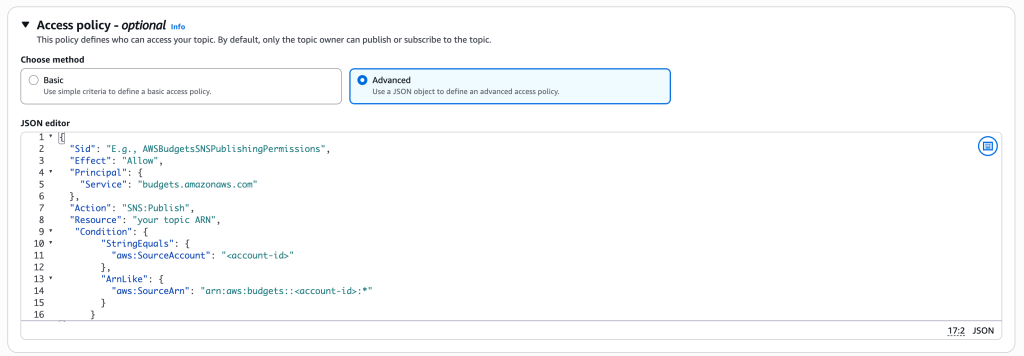
Replace “<account-id>” with your own AWS account ID. For the “Resource” field, use the ARN of the SNS topic you just created. Simply copy the topic ARN and update the policy.
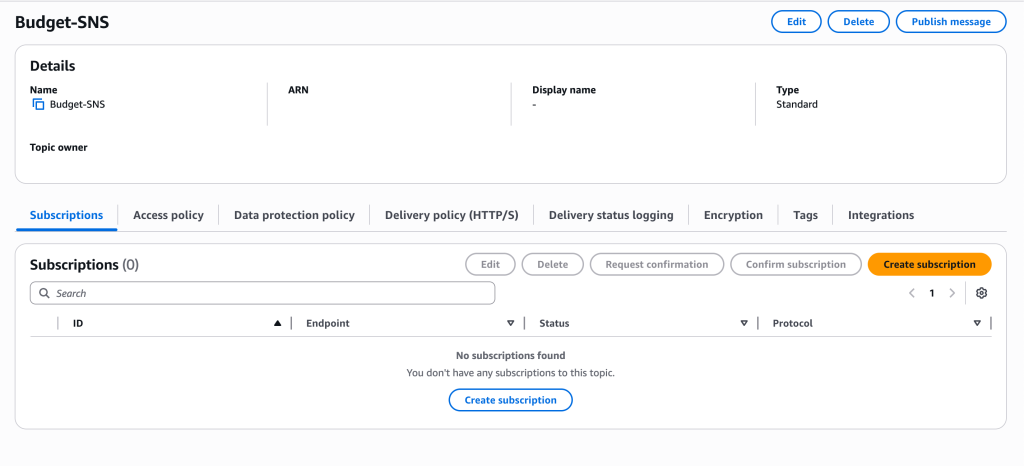
Below is the SNS topic that I’ve created. To set up an email address as a subscriber, click Create subscription.
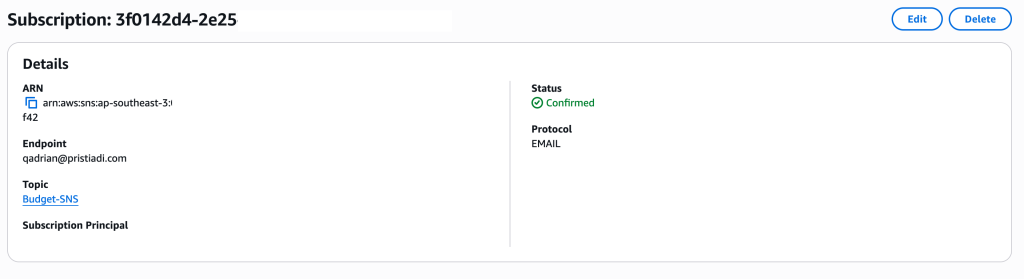
Select the Topic ARN that we just created. For the protocol, choose Email, then enter your email address in the endpoint field.
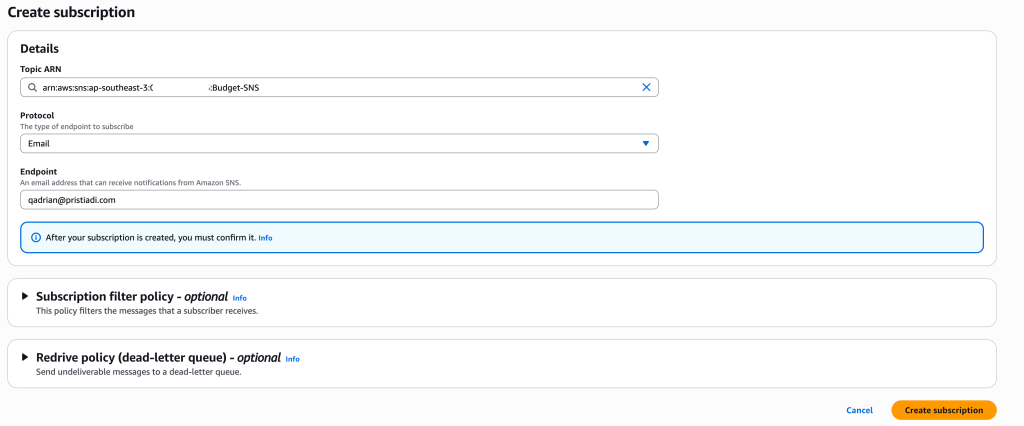
You’ll receive a subscription confirmation email from SNS. Just follow the link and make sure the subscription status is Confirmed.
SNS is done. Let’s move on to IAM roles!
Section 2: Create IAM roles & policies
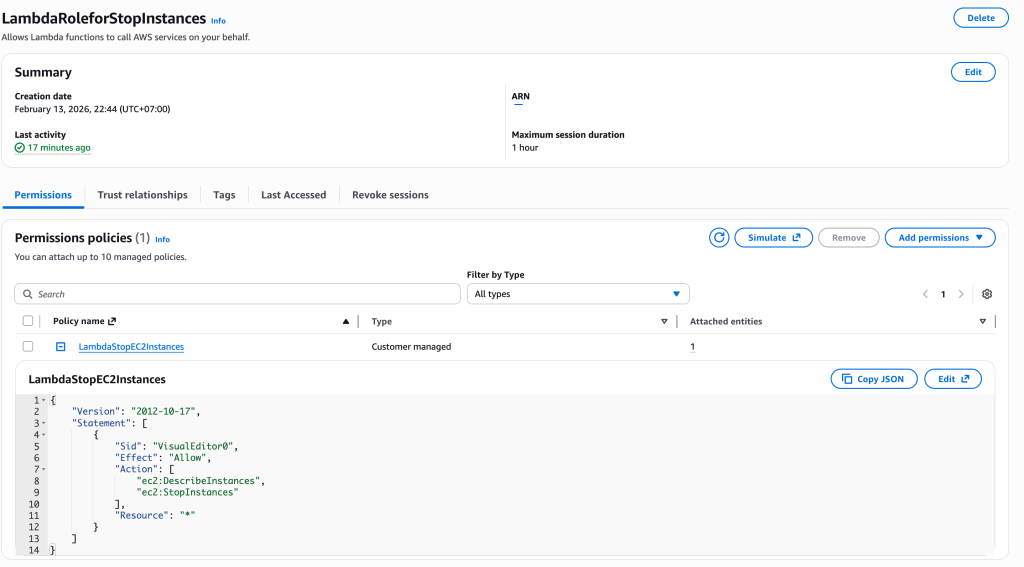
This policy and role ensure that the Lambda function has permission to stop EC2 instances when it is invoked.
For the policy, create a new customer managed permission and simply use this JSON format below
{
	"Version": "2012-10-17",
	"Statement": [
		{
			"Sid": "VisualEditor0",
			"Effect": "Allow",
			"Action": [
				"ec2:DescribeInstances",
				"ec2:StopInstances"
			],
			"Resource": "*"
		}
	]
}
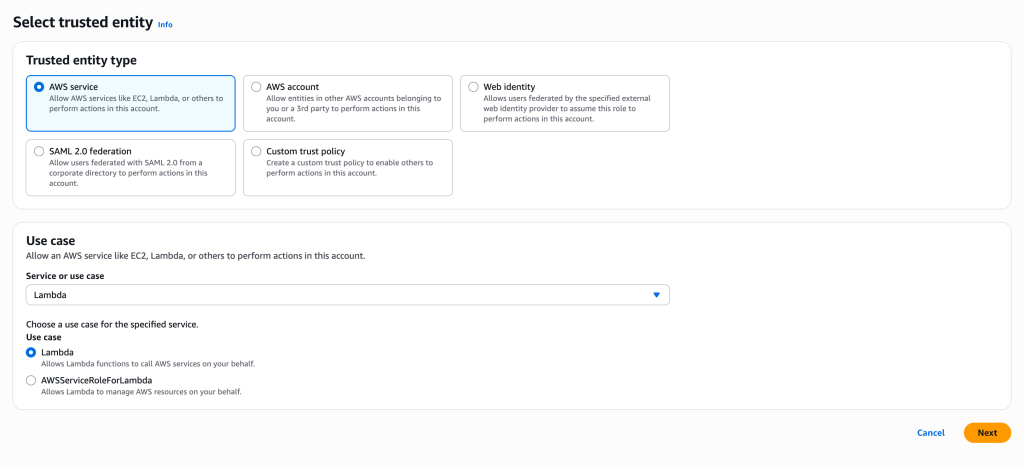
Next create role. Select AWS service as a type then choose lambda from the dropdown. For the use case, make sure you choose Lambda
Attach the permission policies that we created earlier to the role and make sure it’s properly assigned.
Section 3: Setup AWS Budgets Alerts
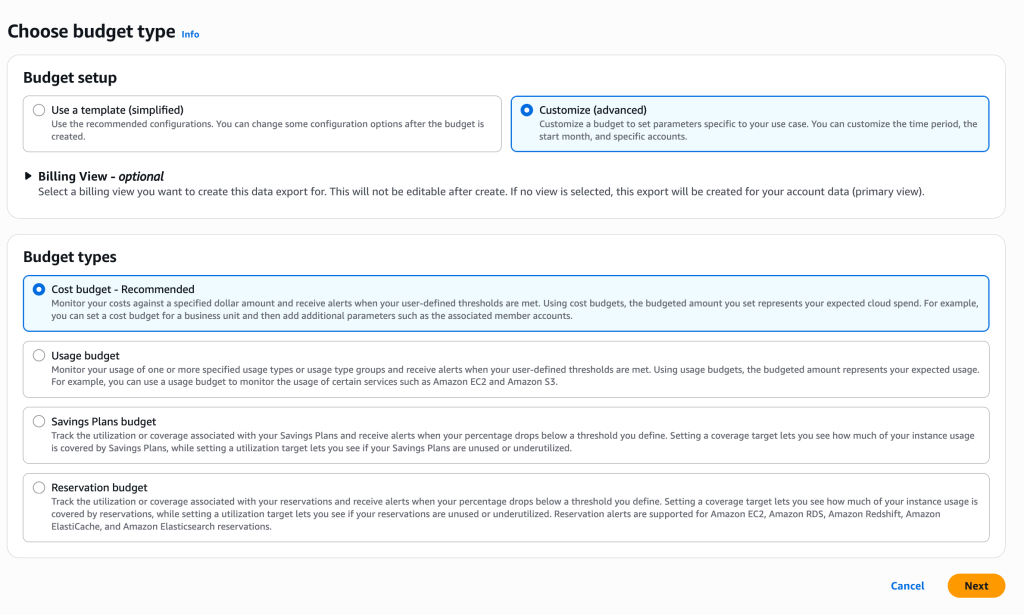
Go to Billing and Cost Management and choose Budgets from the menu. For the budget type choose Customize. Because we want to monitor cost usage, then choose Cost budget.
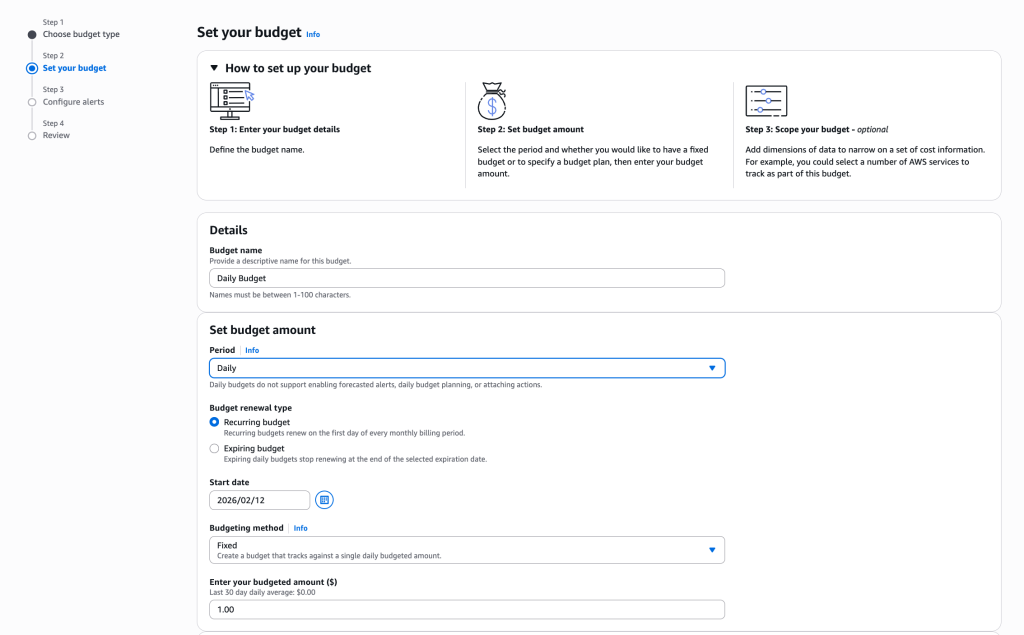
On the Set your budget page, adjust the period based on your needs. In this example, I’ve set the period to Daily with a budgeted amount of $1.
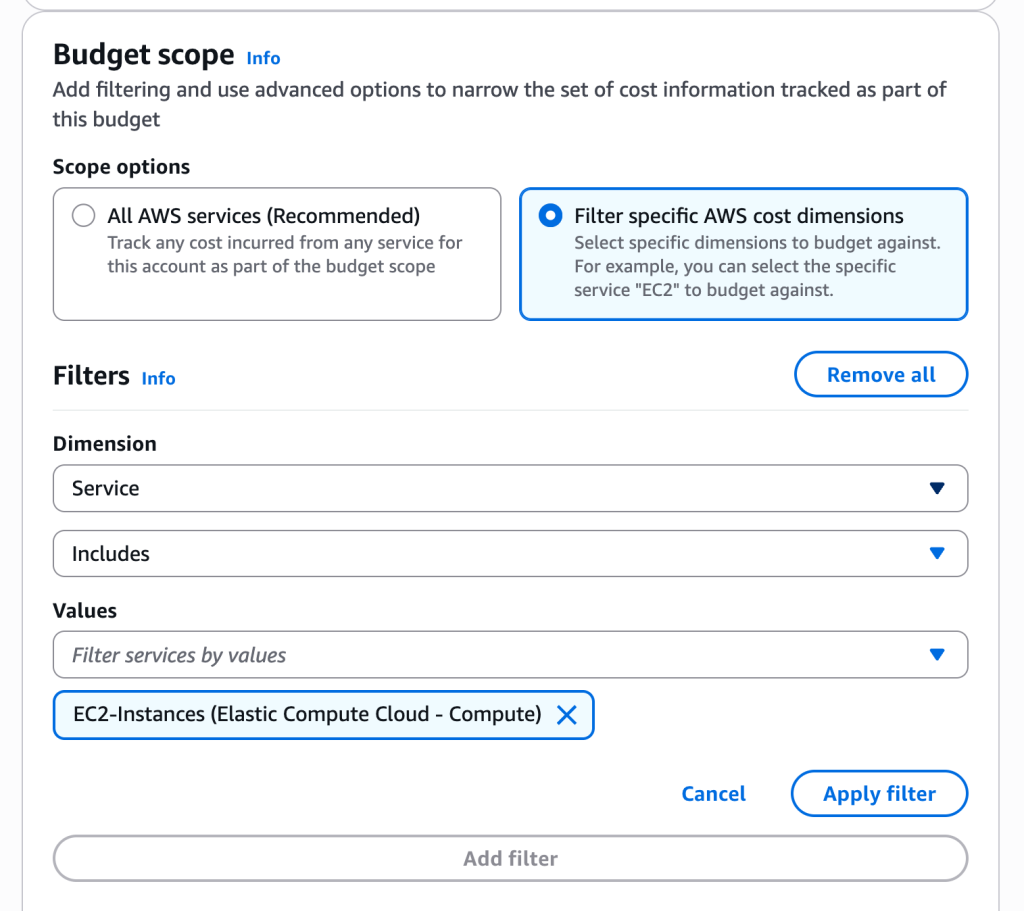
In the Budget scope section, select Filter specific AWS cost dimensions. Since we’re only using EC2 instances in this setup, choose EC2-Instances under the Services filter.
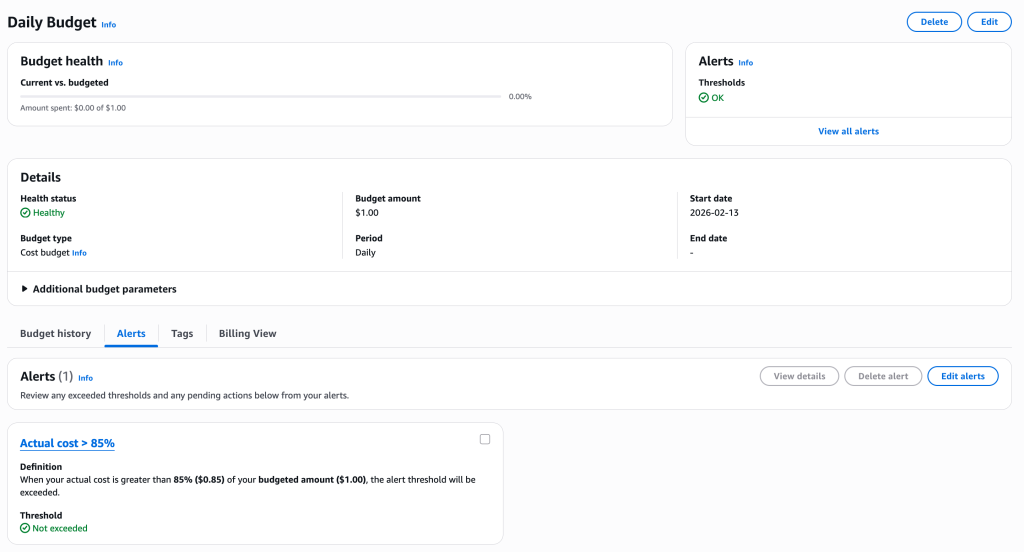
We can define our desired alert threshold. For example below, i’ve set the threshold for 85%. Whenever budget are hit 85% they will send alerts to recipients.
Select the Amazon SNS Alerts menu then put the SNS Topic ARN we’ve created earlier.

Create the budget. Then double-check the configuration before we go to next steps with Lambda.
Section 4: Create a lambda function
First, go to the Lambda service and create a new function.
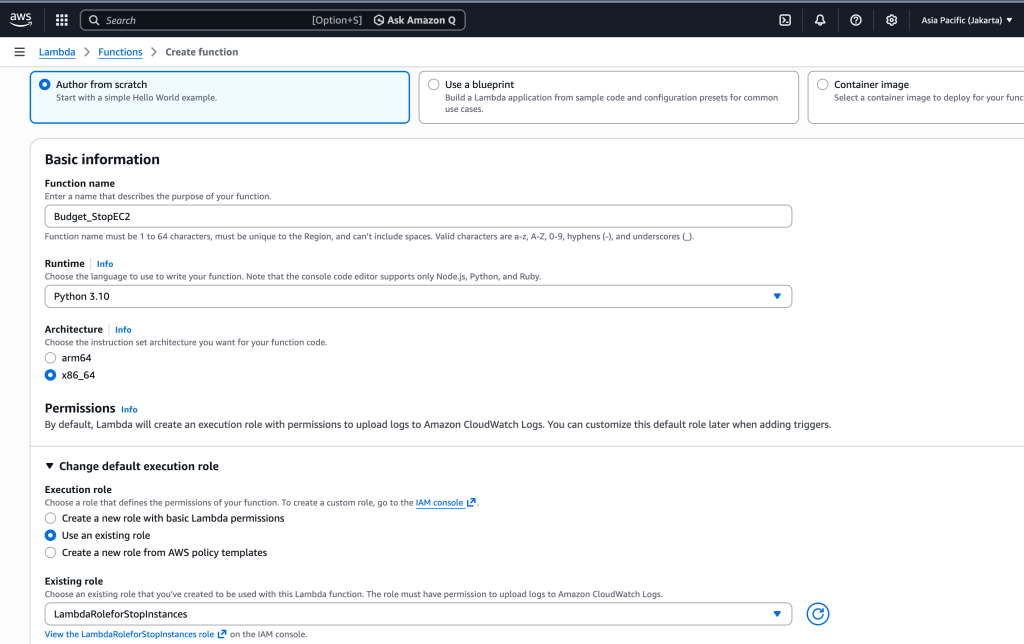
Choose Author from scratch, then give your function a name and set the runtime to Python 3.10.
For the execution role, select the IAM role that we’ve created earlier. Make sure you choose the correct role
For the Lambda function code, you can use the example below. Feel free to modify it based on your needs.
import boto3

ec2 = boto3.client('ec2')

def get_running_instances():

    response = ec2.describe_instances(
        Filters=[
            {
                'Name': 'instance-state-name',
                'Values': ['running']
            }
        ]
    )

    instance_ids = []

    for reservation in response['Reservations']:
        for instance in reservation['Instances']:
            instance_ids.append(instance['InstanceId'])

    return instance_ids


def lambda_handler(event, context):

    ids = get_running_instances()

    if not ids:
        print("No running instances found")
        return

    print(f"Stopping instances: {ids}")

    ec2.stop_instances(
        InstanceIds=ids
    )
This Lambda function first checks for any EC2 instances that are currently in a running state. It retrieves their instance IDs using the describe_instances API, and if any are found, it sends a stop_instances request to shut them down directly. Deploy it then we need to test the code.
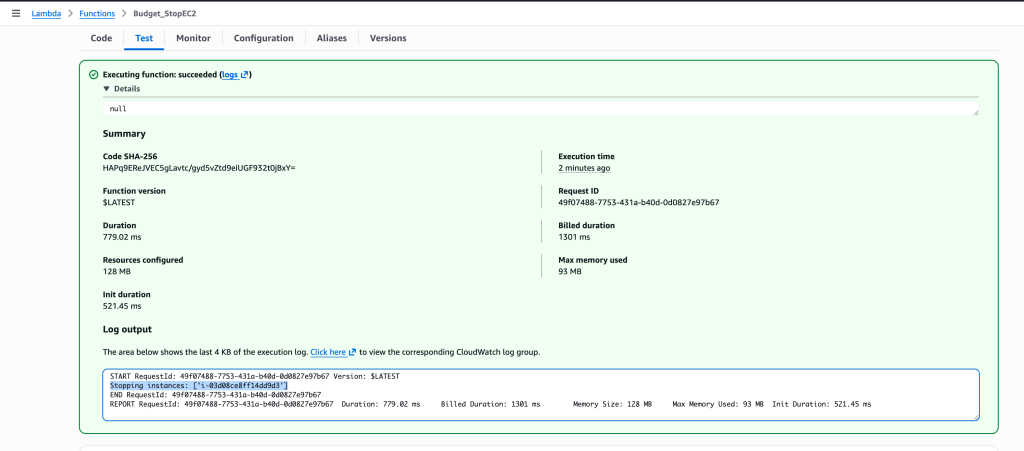
Go to the Test tab, then click Test. Below is an example of the output from the code. As you can see, one instance is currently being stopped.
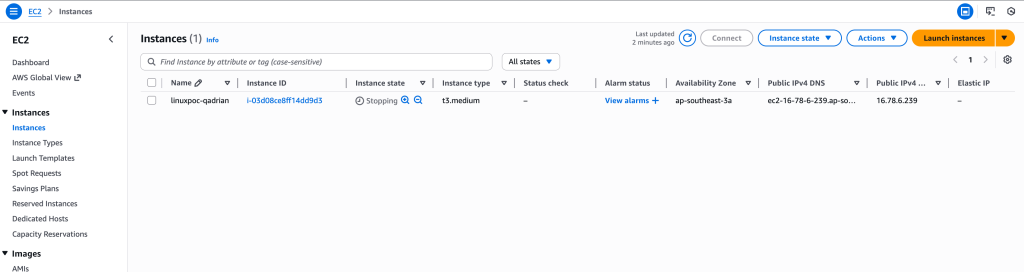
To validate the test, go to the EC2 Instances page and check the instance state.
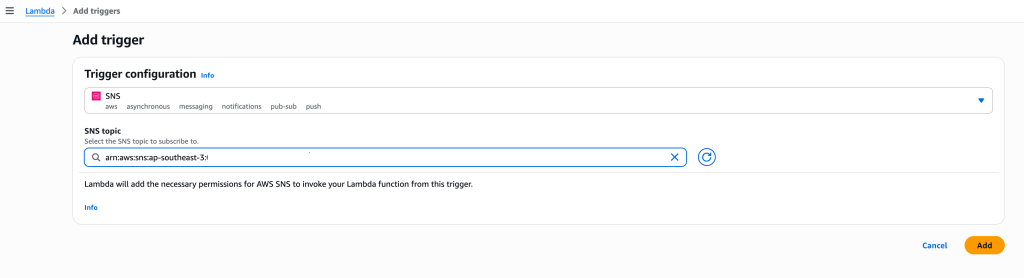
To register the Lambda function as a subscriber to the SNS topic, add new trigger to lambda. Select SNS as the trigger source, then enter the ARN of the SNS topic we created earlier.
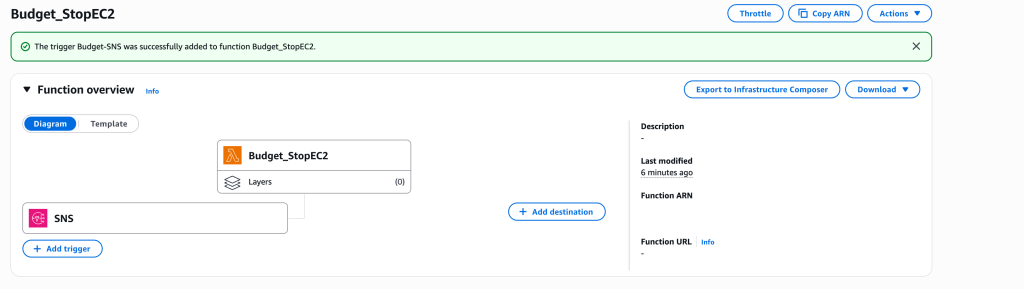
SNS trigger has been added successfully, the Lambda function will be invoked whenever the SNS topic publishes a new notification, and it will execute the code we’ve set up
Conclusion
In this setup, we’ve built a simple automation that stops EC2 instances automatically when an AWS Budget threshold is reached. By integrating AWS Budgets with SNS and Lambda, we can minimize the risk of cost overruns in our account.
Keep in mind that this approach is better suited for non-production workloads.